
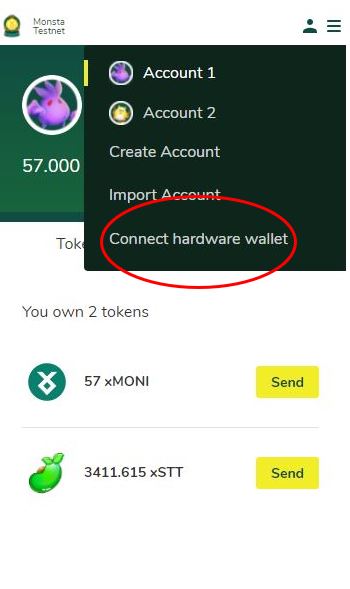
To connect to a compatible hardware wallet please select the circle at the top right of the extension and then select “Connect to a hardware wallet” from the dropdown menu that appears.
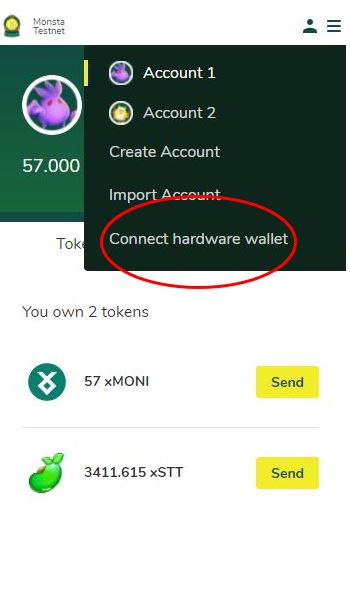
Notes:
For Ledger users you may have to tweak a few settings on your Monsta Wallet. Click on the Monsta Wallet extension, then select “Settings”, go to “Advanced” and scroll down to turn on the “Use Ledger Live” feature. After that return to your Monsta wallet, select “Connect Hardware wallet” from the drop down menu on the top right, then open Ledger Live and connect to the device.
Step 1
Connect your wallet
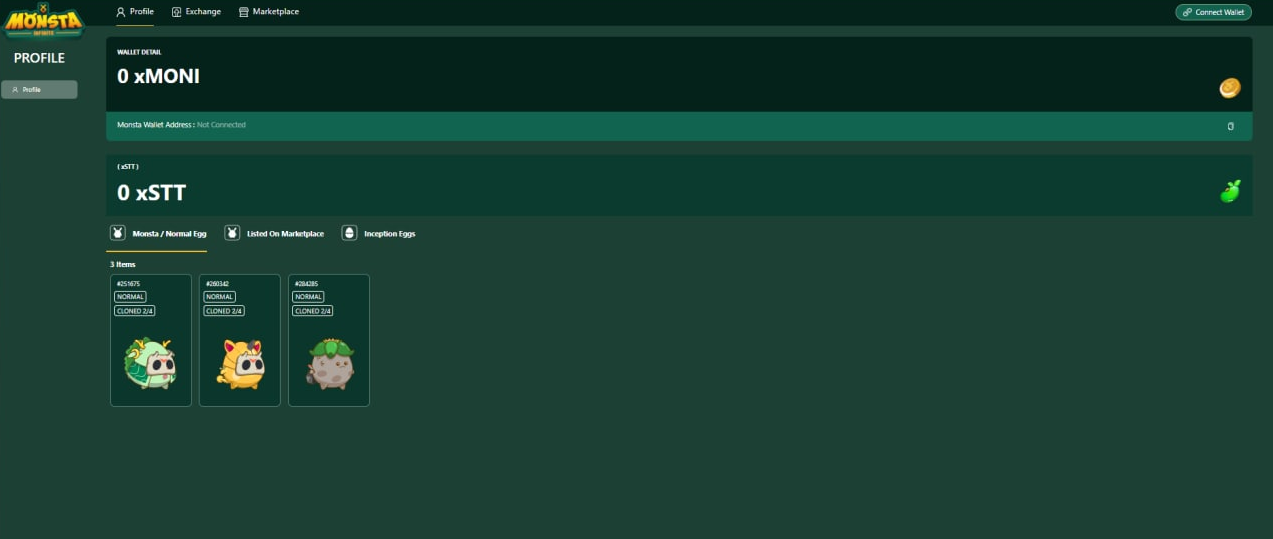
Step 2
Type your Monsta Wallet Password
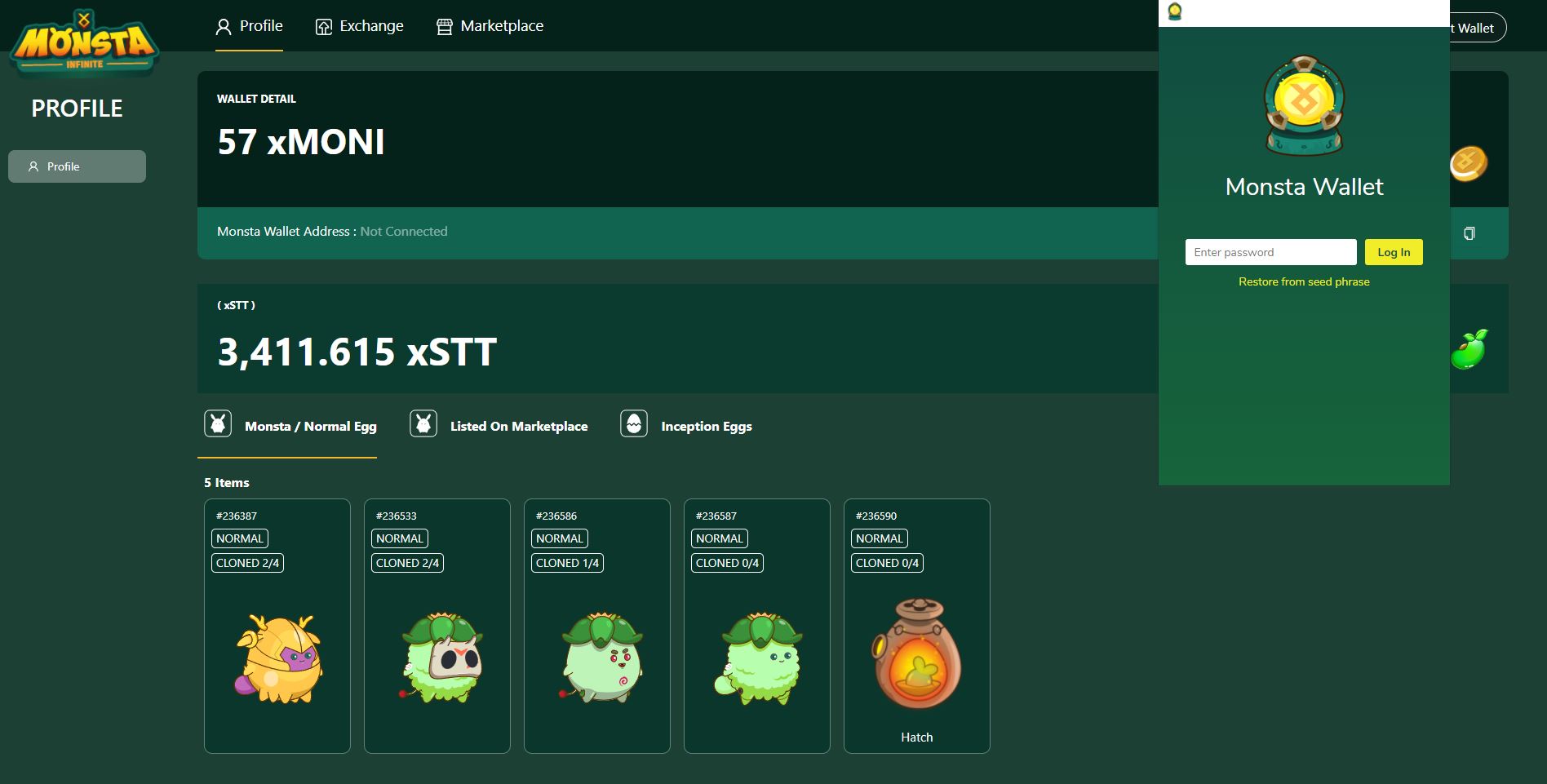
Step 3
Click on ‘Simple Human Icon’
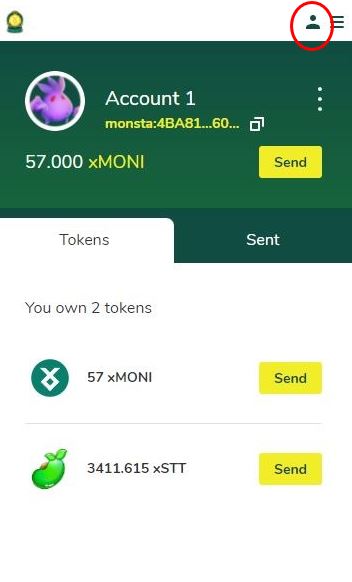
Step 4
Click on ‘Connect hardware wallet’
Step 5
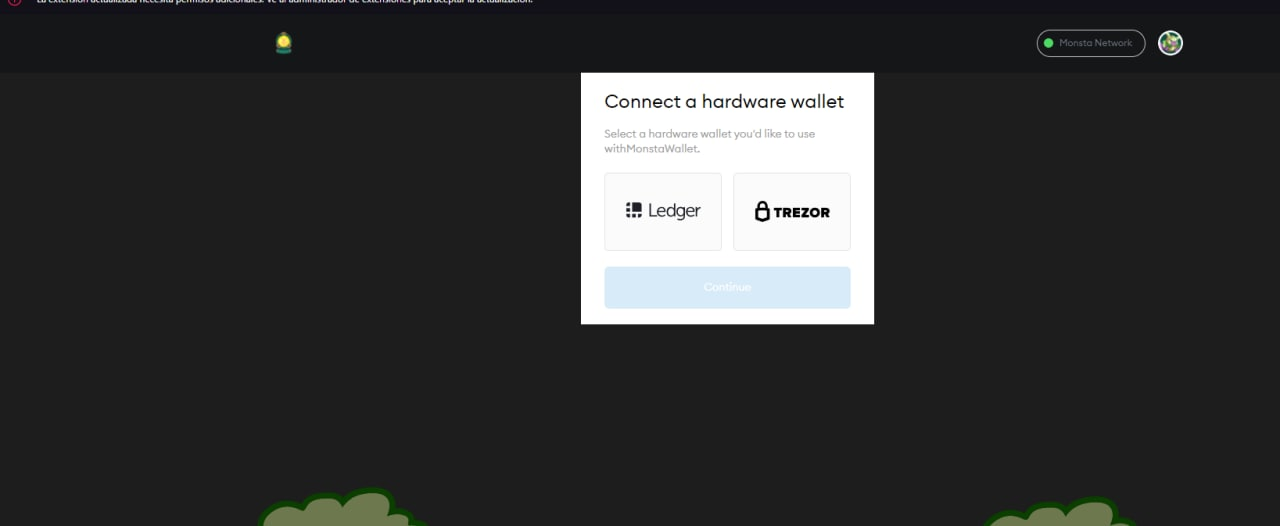
Select your Brand
Step 6
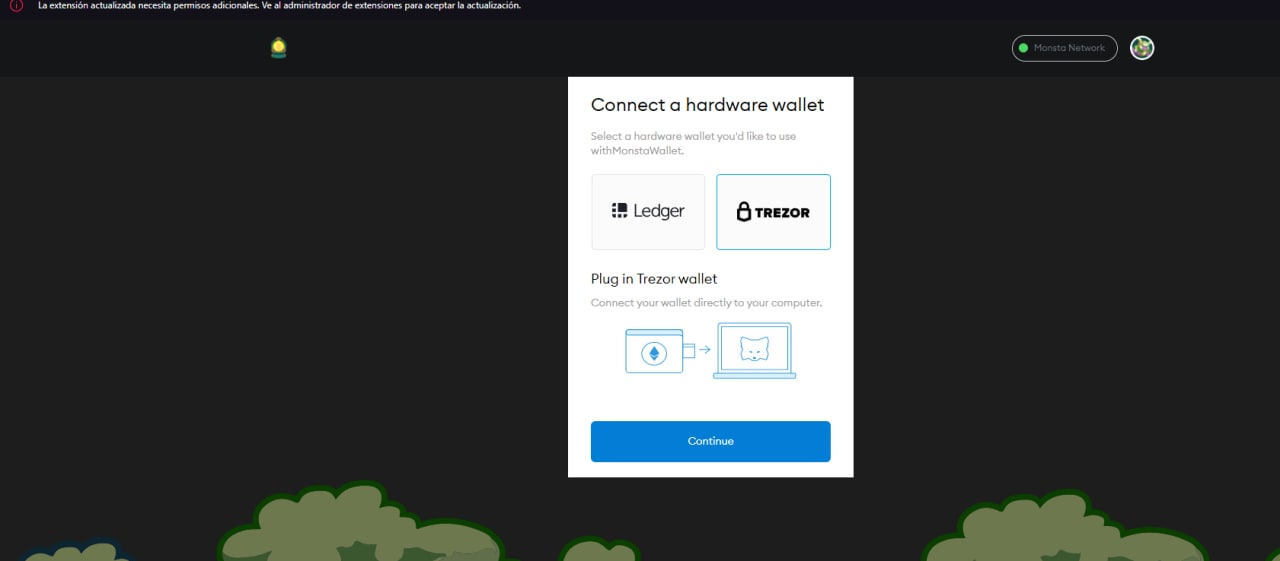
Connect your Ledger in Your USB Port
Step 7
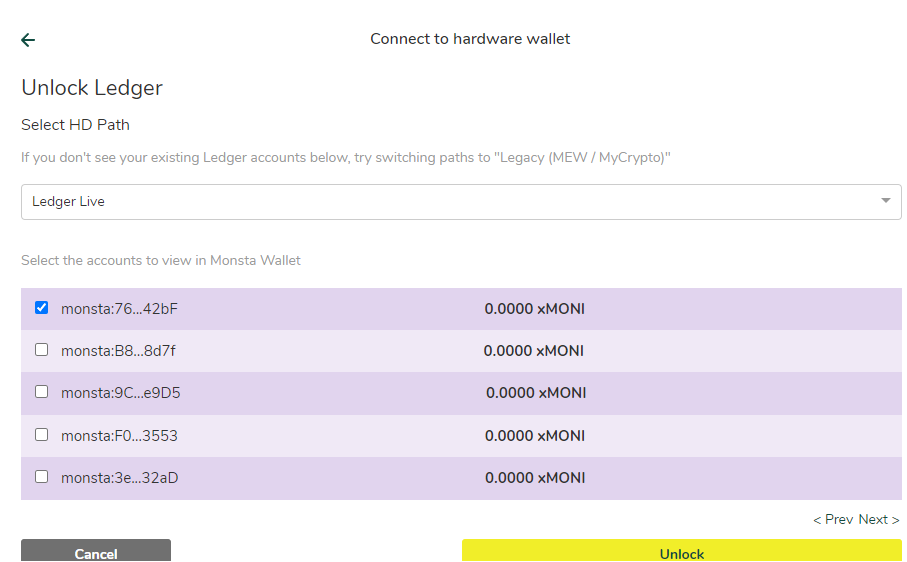
Select Your account and click UNLOCK
Step 8
Your New Wallet will Popup
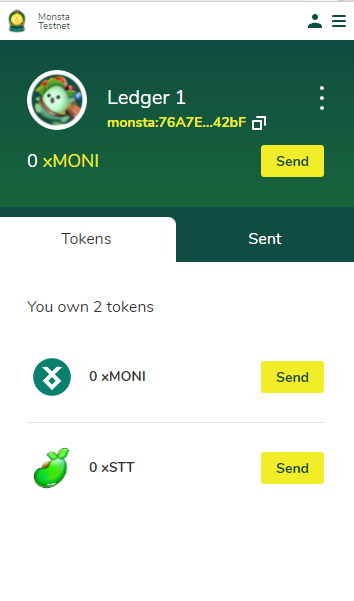
Step 9
Performing transaction on Ledger Wallet (Example: Monsta Purchase)
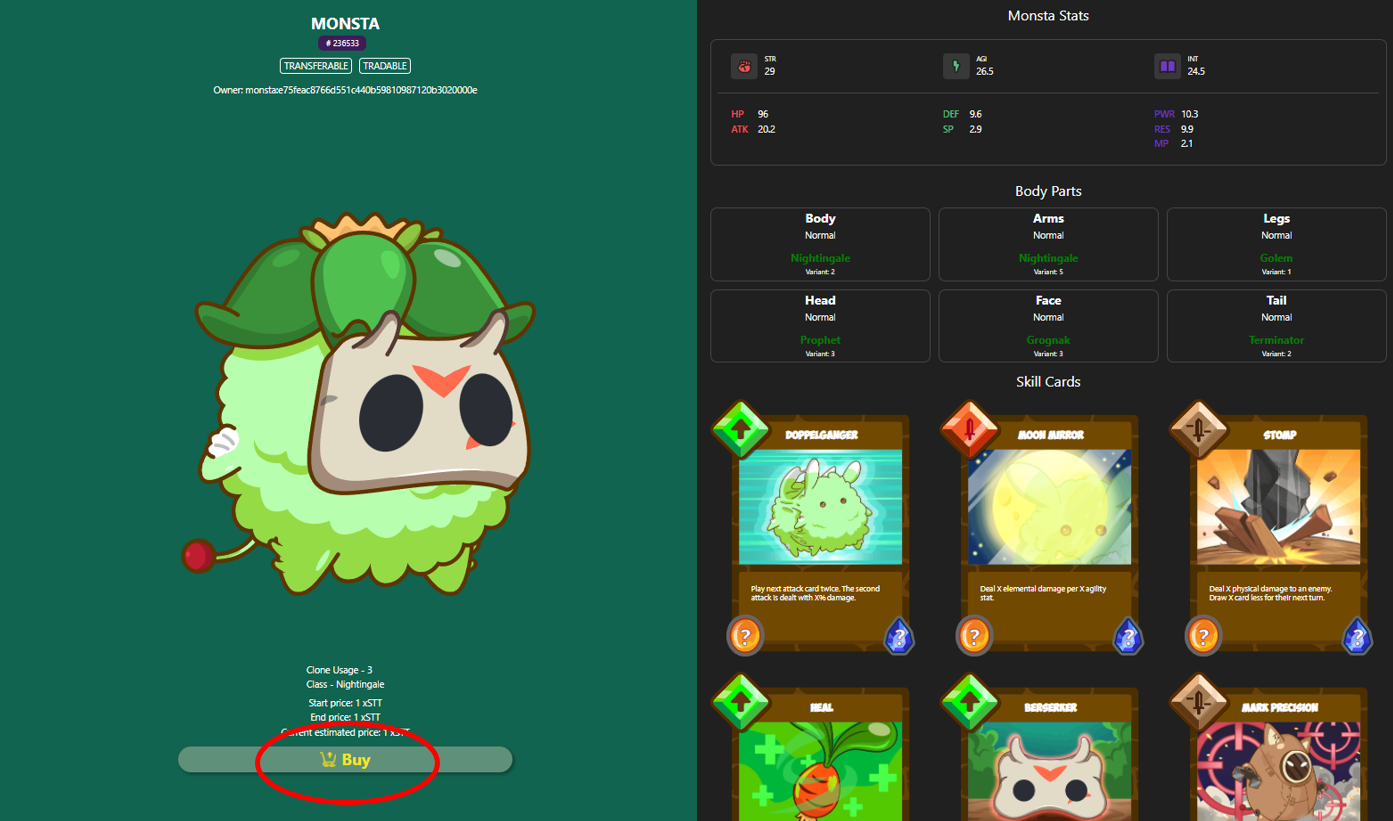
Step 10
Click on ‘Buy’
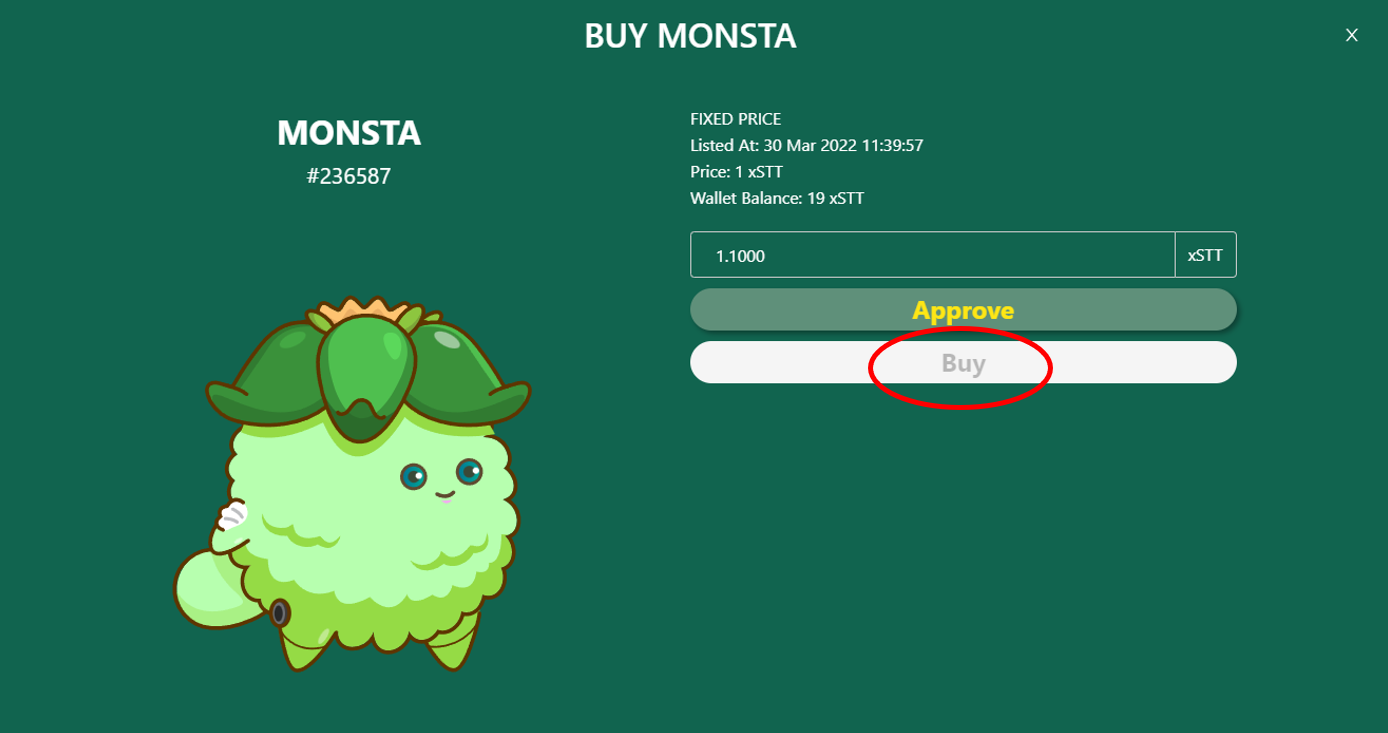
Step 11
Confirm Transaction by clicking ‘Submit’ on the popup
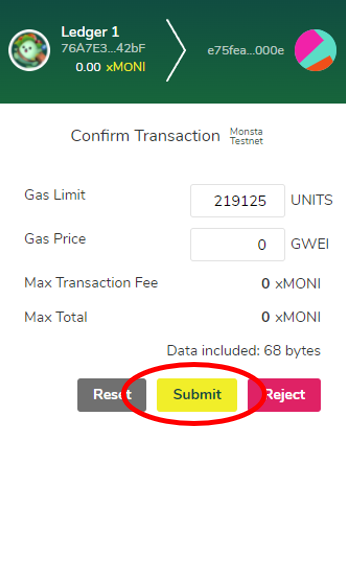
Step 12
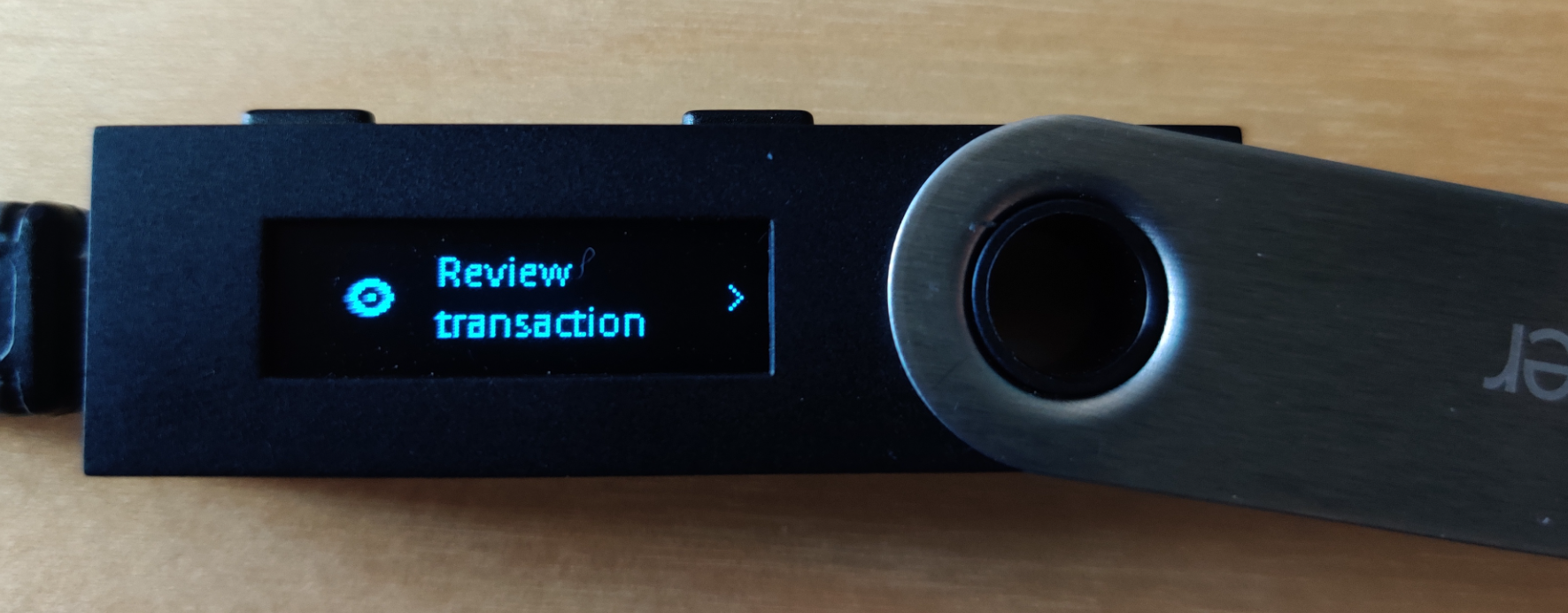
Review the transaction on your Ledger
Step 13
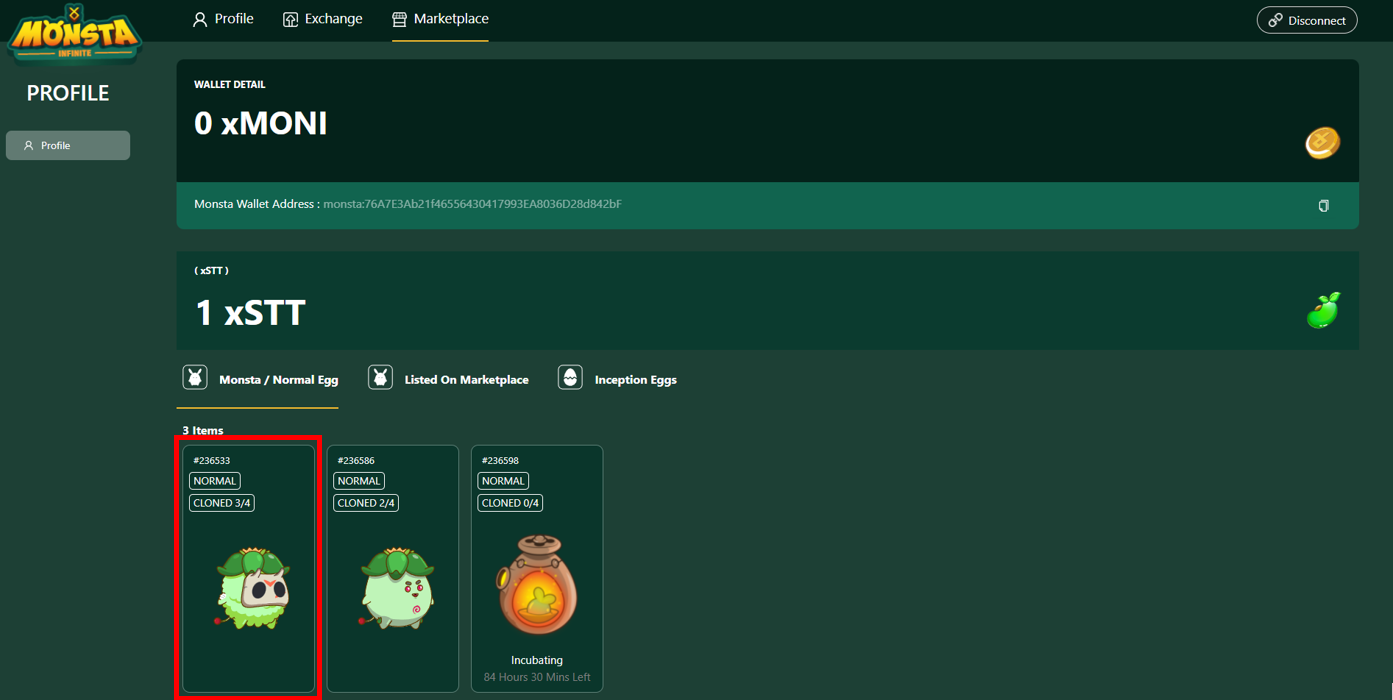
Asset appears at your Monsta Infinite’s profile
Comments
0 comments
Please sign in to leave a comment.